Pippin permissions and troubleshooting
A move fails, or a channel never appears, when Discord is blocking Pippin or the person running the move. Pippin checks permissions before it copies anything and shows a checklist of what is missing.
The checks below are the ones pippin.gg states a move needs. The Add to Discord invite requests those bot permissions, plus a few more for messages and threads. The integer is under What the invite requests.
| Permission | Why it is needed | Who | Where |
|---|---|---|---|
| Manage Messages | Required to run a move. Also required on the bot. Deleting originals, if you choose that after the move, happens in the source. | Moderator and bot | Moderator: to run the move. Bot: required. Source, for deleting originals. |
| Send Messages | The person running the move must be allowed to send messages in the destination. | Moderator | Destination |
| Create Public Threads, or Create Private Threads | Required when the move creates a thread instead of posting flat messages. The product site groups this as “permission to send messages (or create threads) in the destination.” | Moderator | Destination |
| Manage Webhooks | Moved messages keep the original author’s server nickname and avatar because Pippin reposts through a webhook. | Bot | Destination, where the messages are written |
| View Channel | The bot cannot read or post in a channel it cannot see. A private channel stays out of the destination list until this is allowed. | Bot | Source and destination |
| Read Message History | Pippin has to read the messages it moves. | Bot | Source |
Inviting the bot is separate. That needs Manage Server on the Discord server. Moving does not need Administrator.
Private channels and threads
A private channel or private thread is invisible until Pippin’s role can view it. The role is listed as Pippin the Mover unless it was renamed.
- Right-click the channel or category and open its settings.
- Open Permissions, add Pippin the Mover, and allow View Channel.
- If that channel overrides other permissions, also allow Read Message History on the source, and Manage Webhooks plus Manage Messages where the table above says the bot needs them.
Denying View Channel is how you hide a category from Pippin. Those steps, with screenshots, are in Limit where Pippin can see.
The person running the move also needs access to both sides. For a private thread, that means they are in the thread, not only that the bot can see the parent channel.
Common errors and fixes
The destination is missing. Confirm Pippin’s role has View Channel on that channel. Then search by typing in the picker. Discord will not list every room in a large server. You can also paste a Discord link. Pippin rejects an unsupported link with an explanation instead of failing halfway through the move.
Pippin stops and lists missing permissions. Grant the row from the table in the channel that the checklist names. A role permission at the top of the server does not win if the channel has a deny override.
Nobody was pinged. That is how a move works. Only members who were @mentioned in the original message bodies get pinged. @everyone and @here in a moved message do not re-ping.
The original messages are still there. Pippin asks whether to delete them only after the move succeeds. If you do not answer, it keeps them. There is no undo.
A message was skipped or split. Messages over 2,000 characters, and oversized attachments, ask you to split or drop, skip, or cancel. A sticker Discord rejects is dropped from that message. The rest of the move continues.
Restrict who can use Pippin
Two different controls get mixed up.
Who can run Move. In Discord, open Server Settings → Integrations → Pippin, and set who can use the app’s commands. That is Discord’s integration permission, not a separate Pippin dashboard.
Which channels Pippin can see. Denying View Channel removes those channels from the destination list for everyone. The same screenshots are on Limit where Pippin can see.
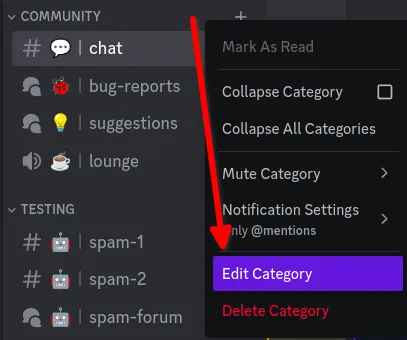
Right-click the category and choose Edit Category.
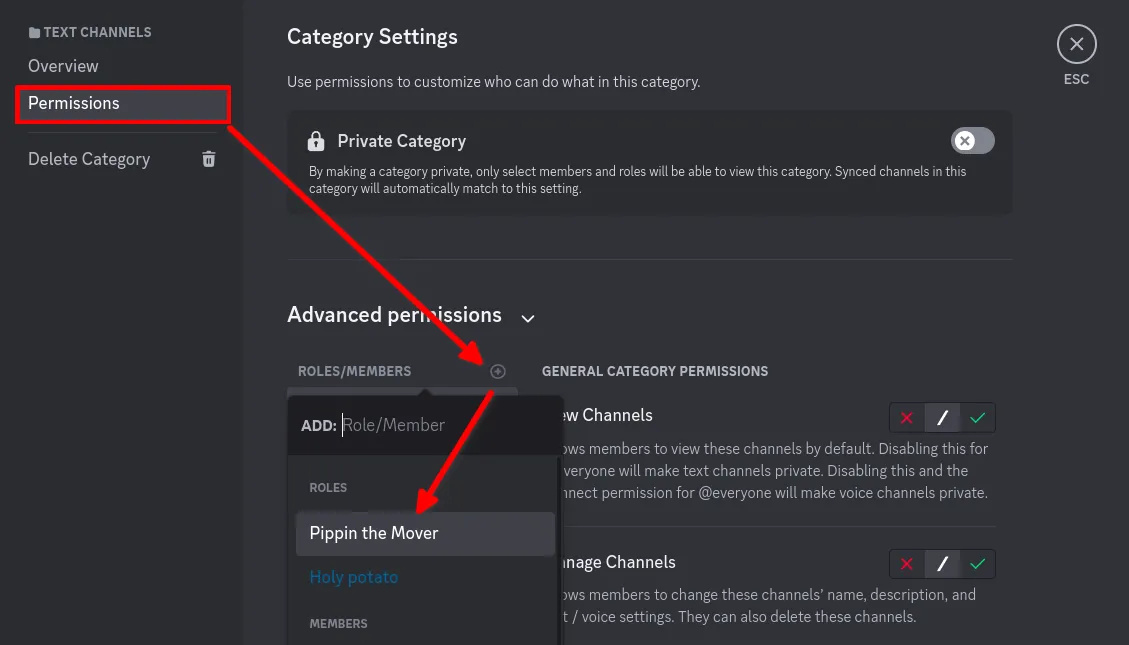
Open Permissions, choose the + next to roles, and add Pippin the Mover.
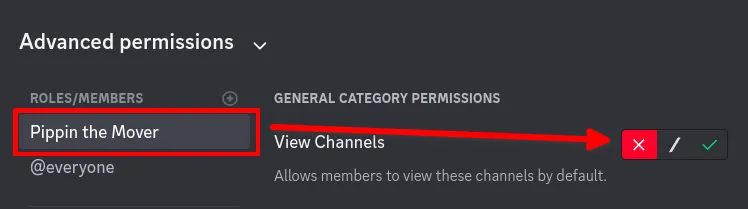
Select the red ✕ on View Channel. Pippin can no longer see the channels, threads, or forums in that category.
What the invite requests
The Add to Discord invite uses scope=bot and permissions integer 533113203776:
The button on pippin.gg also sends the install through https://pippin.gg/dashboard and fills in a server id. The link above is the same client, scope, and permission integer without that dashboard round-trip.
533113203776 requests:
- View Channel
- Send Messages
- Add Reactions
- Manage Messages
- Embed Links
- Attach Files
- Read Message History
- Use External Emojis
- Manage Webhooks
- Manage Threads
- Create Public Threads
- Create Private Threads
- Use External Stickers
- Send Messages in Threads
Administrator is not requested. Mention Everyone is not requested either. @everyone and @here in a moved message do not re-ping.
A channel override can still remove View Channel, Send Messages, or any other row after the invite. If a destination is missing, allow View Channel for Pippin’s role on that channel. Do not turn on Administrator to get around a deny.
FAQ
Why can’t I see a channel in Pippin’s destination list?
Pippin lists channels you can access, and only if the bot has View Channel there. Add Pippin the Mover on a private channel and allow View Channel. You can also type a name into the picker, or paste a Discord link.
Does Pippin need Administrator?
No. The invite does not request it, and a move does not need it. Use the permissions in the table.
Why was nobody pinged?
Only members who were @mentioned in the original message bodies get pinged. @everyone and @here in a moved message do not re-ping.
Still stuck after the overrides match the table? Ask in the support server. Setup steps are on Set up Pippin.