Set up the Pippin Discord bot
-
Open Add Pippin to your server. That link uses the same client id,
botscope, and permission integer as the Add to Discord button on pippin.gg. -
Choose the server and authorize the bot. Discord shows the permissions the invite requests. Pippin does not ask for Administrator.
-
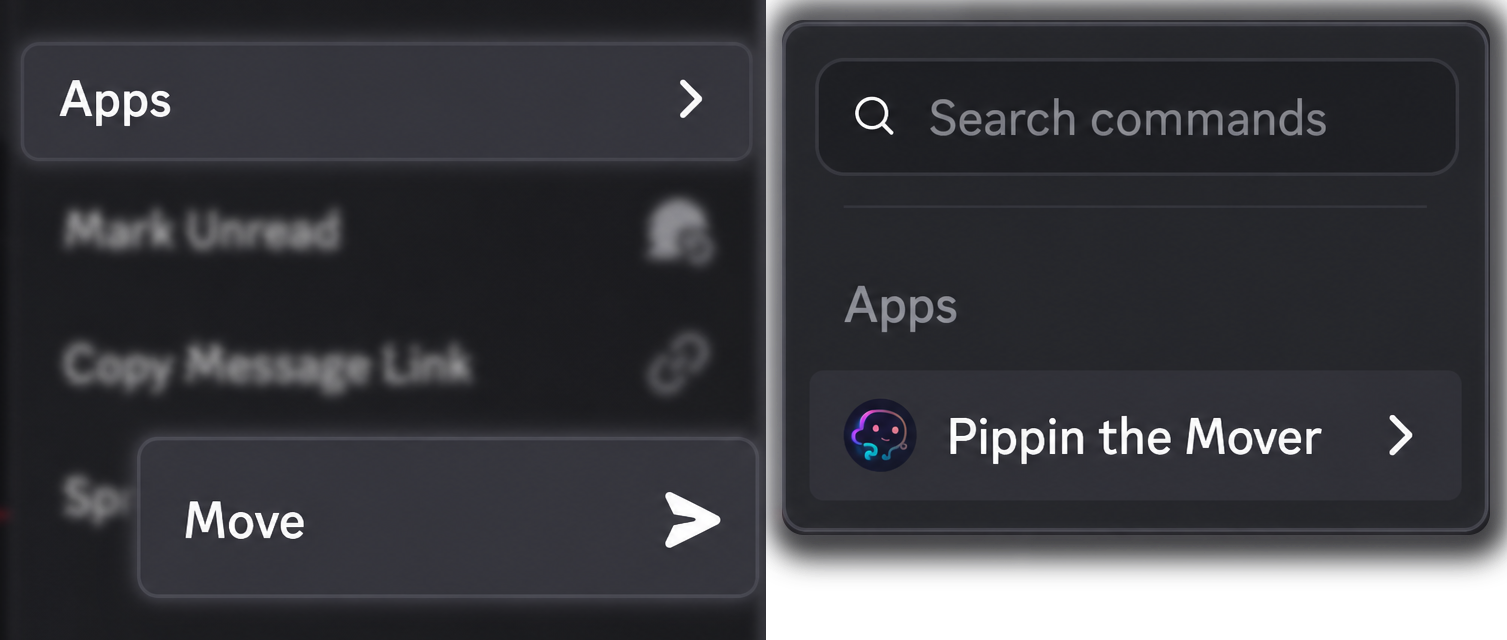
In a channel, right-click a message, or open ⋯, then choose Apps → Move. In a text channel the wizard opens in a private setup thread, so the channel itself stays quiet. After a successful move, that setup thread deletes itself about sixty seconds later.
-
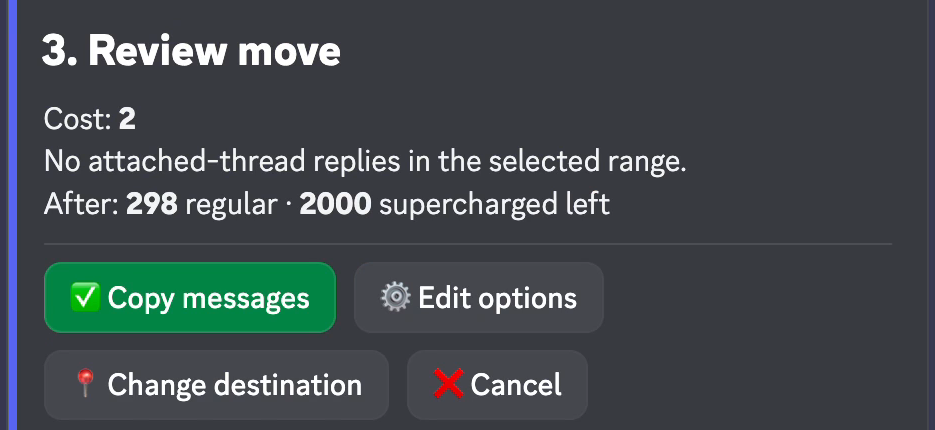
Pick a destination, choose how many messages, and confirm on Review move. Pippin asks afterwards whether to keep the originals. If you do not answer, it keeps them.
The moderator who runs a move needs Manage Messages, and permission to send messages (or create threads) in the destination. The bot needs Manage Messages, Manage Webhooks, View Channel, and Read Message History. If a channel is missing or a move is blocked, see Permissions.
To hide a category from Pippin, deny View Channel for its role. Those steps are in Limit where Pippin can see.
You can practice on the support server with no move limit, then repeat the move in your own server. The free tier includes 300 moves per month. /movestatus shows what is left.
Next: move a Discord thread to another channel, or move one message.