How to copy Discord messages to another channel or server
Pippin copies a message by posting it at the destination first. It asks about the originals only after that. Choose Keep originals and the move becomes a copy: the messages exist in both places, each with the author’s server nickname and avatar, attachments, embeds, and reactions.
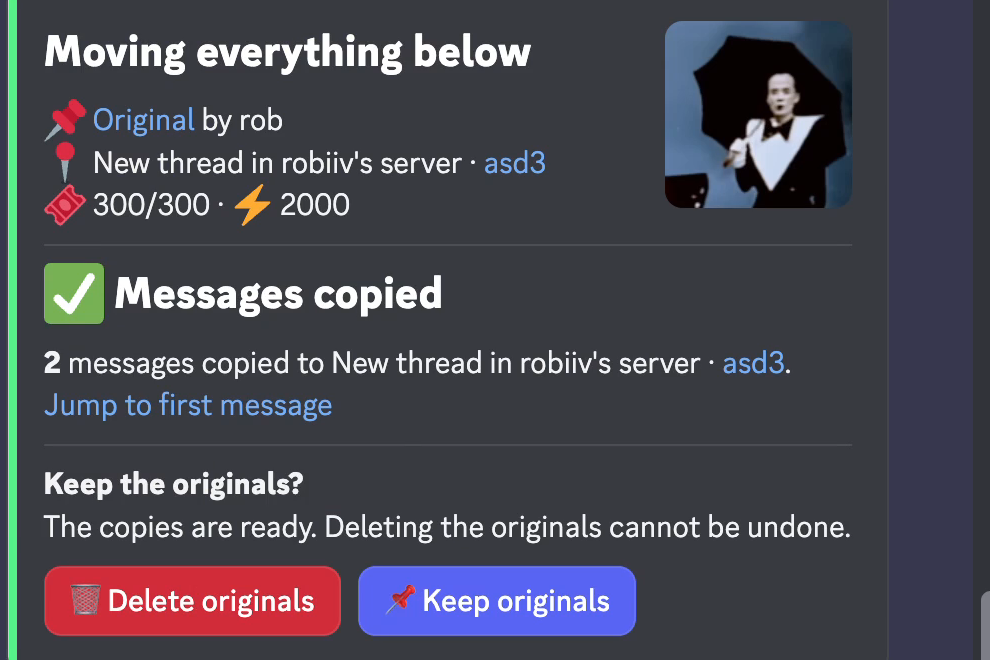
Copy to another channel in the same server
- Right-click the first message, or open ⋯, then Apps → Move.
- Pick a channel, thread, forum post, or forum.
- On Move settings, choose Just this, All below, or Custom range up to 200.
- Select Copy messages on Review move.
- Choose Keep originals. If you do not answer, Pippin keeps them too.
The step-by-step screens are on Move a range of messages.
Copy to another server
Start with Apps → Move cross server in the source server, run the /move-link command it gives you in the target server, then follow the same settings and review. Choose Keep originals at the end. The full walkthrough is Move or copy messages to another server.
Copy a whole channel
Start on the first message and choose All below. One run copies up to 200 messages in their original order. For a longer channel, start the next run on the first message that was not copied.
This is also a safe way to archive a channel before you delete it. Copy it into an archive channel or server, check the copy, and only then delete the old channel yourself.
Good to know
- A copy is a snapshot. Edits and deletions of the original do not reach it.
- Copies get new message IDs and timestamps. Mentions in them do not ping anyone.
- Each copied message counts as one move, like a move does. A new thread or forum post at the destination adds one more.
- Discord’s own Forward sends one message at a time, to at most 5 places, and does not show the original author.