How to move or copy Discord messages to another server
Pippin moves and copies messages between servers. The messages arrive in the other server with each author’s server nickname and avatar, their attachments, embeds, and reactions, in their original order. The originals stay in the source until you choose to delete them, so the same flow is a move or a copy.
Before you start
- Pippin is installed in both servers, and you are a member of both.
- In the source channel you have View Channel, Read Message History, and Manage Messages.
- In the destination you have View Channel and permission to post there, or to create the thread or forum post.
Pippin checks live roles, timeouts, and channel overrides in both servers. It checks again before the review and before it copies anything.
Move messages to another server, step by step
-
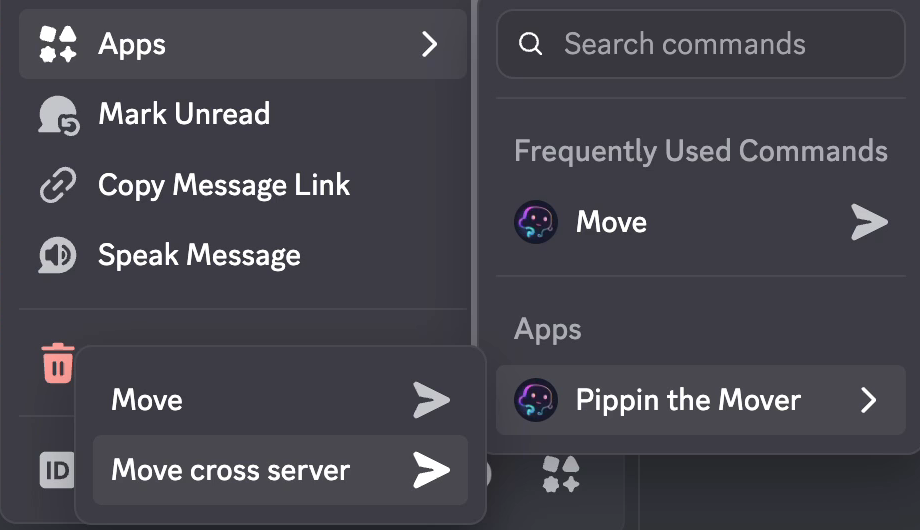
In the source server, right-click the first message, or open ⋯, then Apps → Move cross server.
-
Pippin answers privately with Continue in the other server and a
/move-link secret:…command. Copy the command. Nothing has moved yet.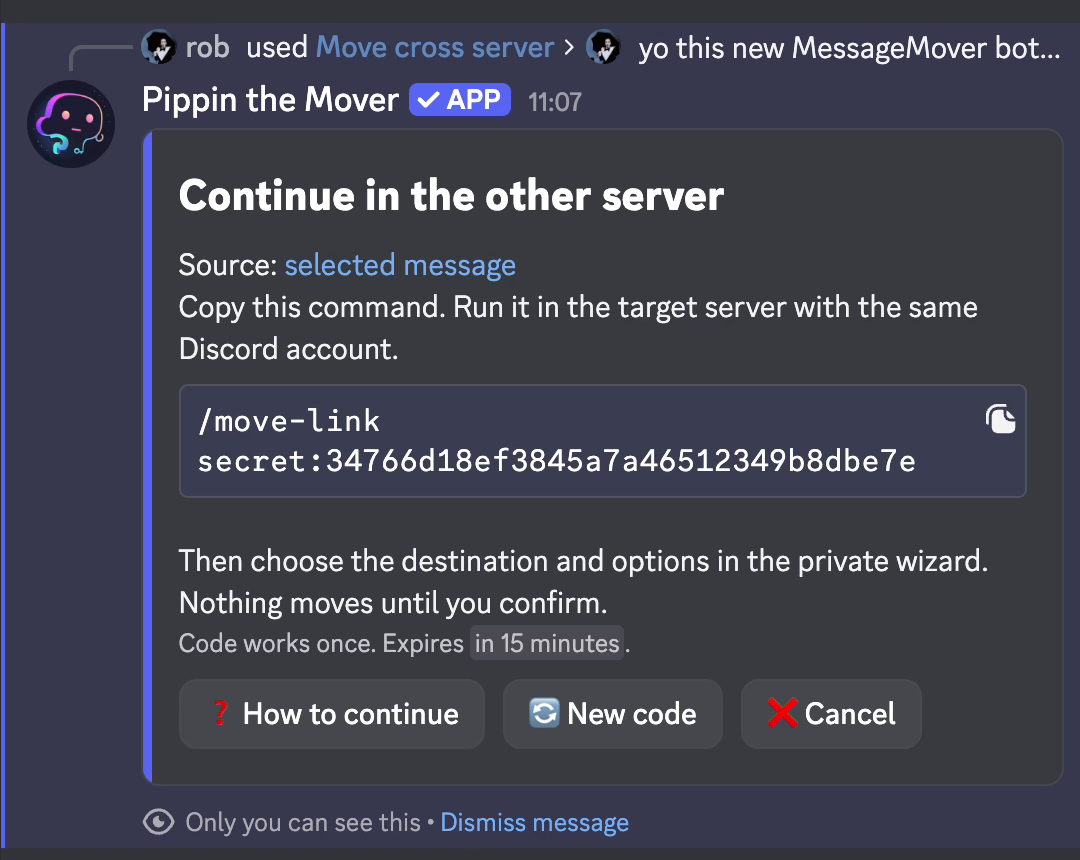
-
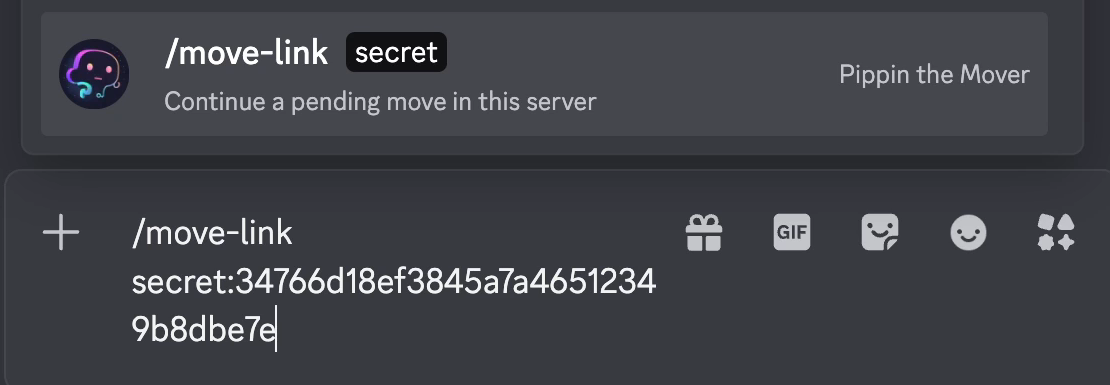
Open any text channel in the target server, paste the command, and pick Pippin’s /move-link. Use the same Discord account. This channel only hosts the private wizard. It does not choose where the messages go.
-
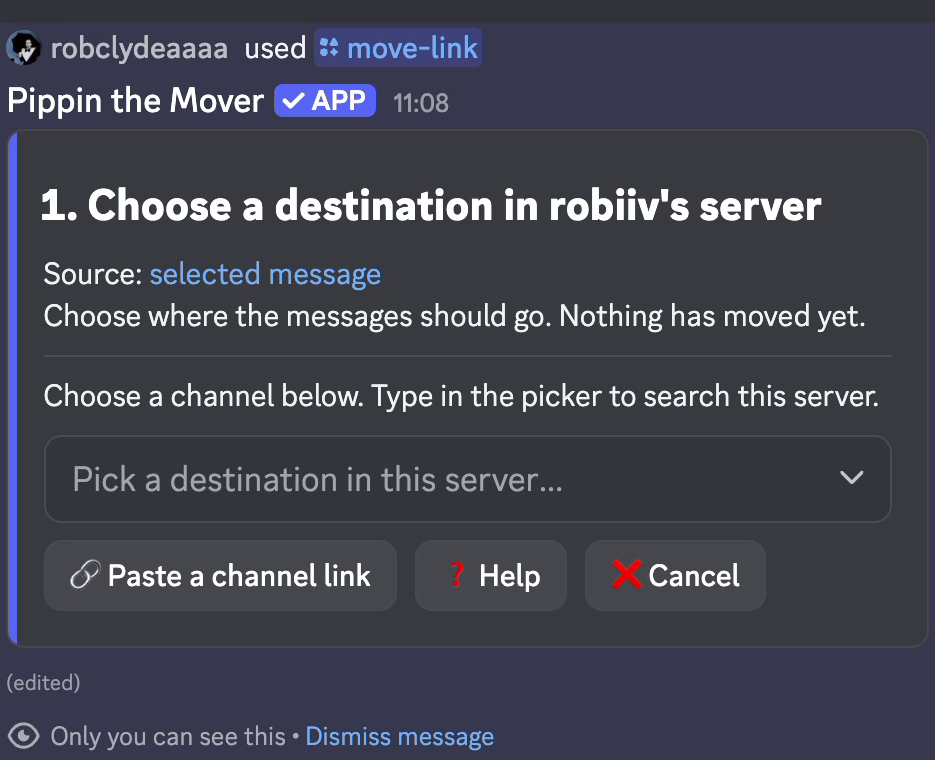
On 1. Choose a destination, pick a text channel, an existing thread or forum post, or a forum for a new post. The picker shows the target server’s channels. You can also paste a channel link.
-
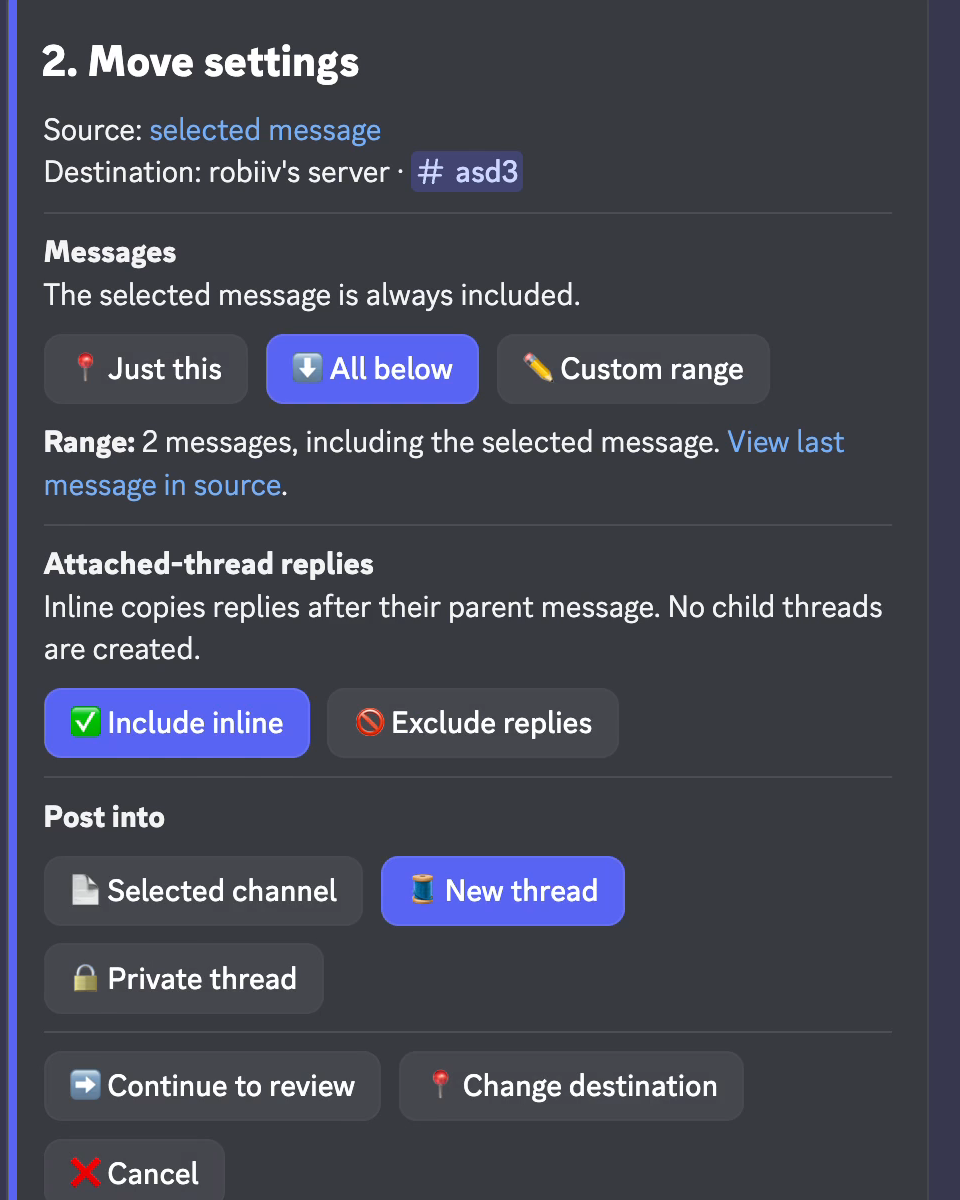
On 2. Move settings, choose the messages: Just this, All below, or Custom range up to 200. Choose what happens to replies in attached threads. For a text channel, choose whether to post into the channel, a new thread, or a private thread. Then select Continue to review.
-
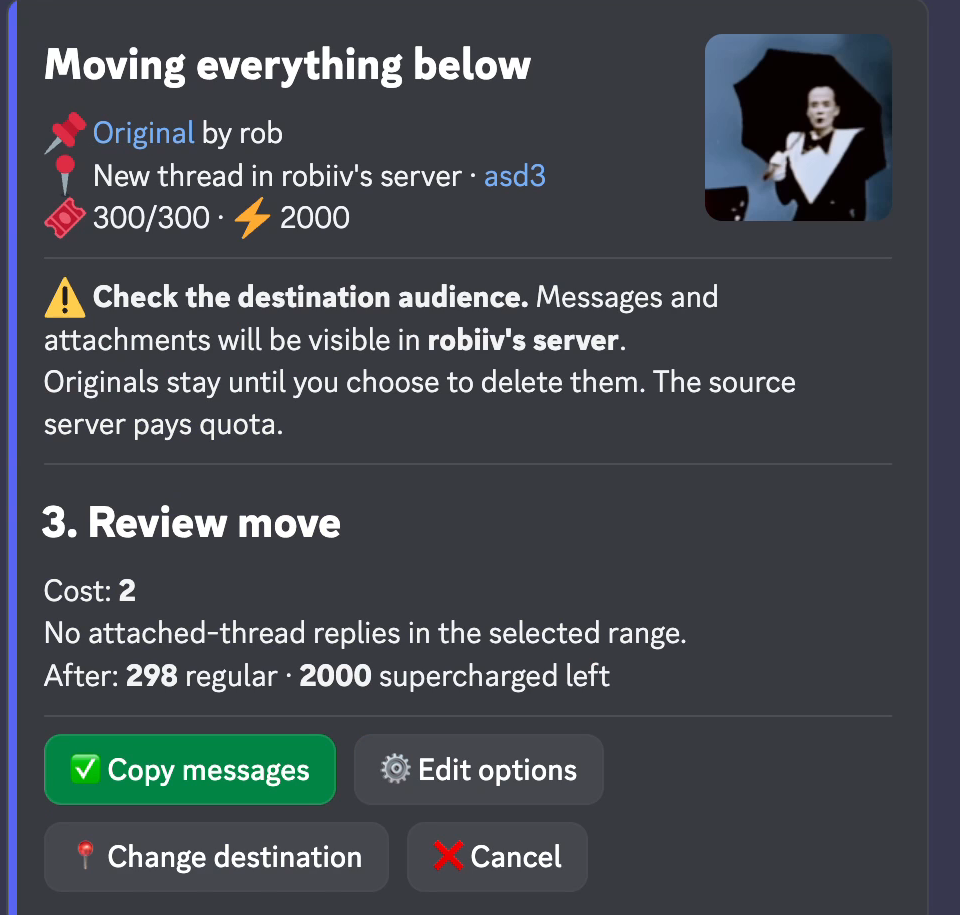
3. Review move shows the cost and the moves left afterwards. It warns that the destination server’s audience will see the messages and attachments. Select Copy messages.
-
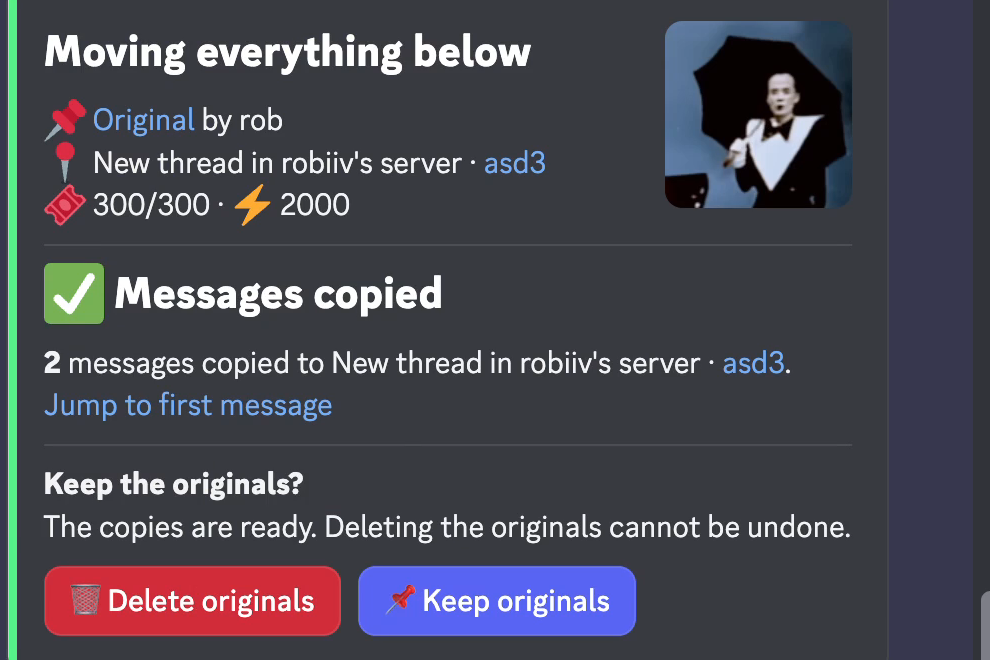
When Pippin reports Messages copied, check the copies with Jump to first message. Then choose Delete originals to finish the move, or Keep originals to keep a copy in both servers. If you do not answer, the originals stay.
The /move-link code
- The code works once, only for the Discord account that started the move.
- It expires after 15 minutes. New code replaces it, and How to continue shows where to paste it.
- Cancel move in either server closes the move before anything is copied.
Who pays, and upload limits
The source server’s monthly moves pay for the copied messages, split posts, and a new thread or forum post at the destination. The destination server’s quota does not change. Every tier can move across servers, including the free tier. One run still handles up to 200 messages.
Attachment limits follow the destination server’s boost level: 10 MiB with no boost or level 1, 50 MiB at level 2, and 100 MiB at level 3. A file that is too large asks you to drop it, skip the message, or cancel.
What the copies keep
Copies show the source author’s server nickname and avatar where available, with attachments, embeds, and reactions. They get new message IDs and timestamps. Mentions in them do not ping anyone. Links back to the source only open for people who can see the source server.
Private content
Check the review’s audience warning before you copy from a private channel. Membership in the target server does not mean access to every channel there. An existing private thread as the destination needs membership or Manage Threads, and Pippin does not add anyone to get around that. When Pippin creates a new private thread at the destination, it adds you to it before copying.